Claude Remote Control with coder.ddev.com

Claude Code’s Remote Control feature connects claude.ai/code or the Claude mobile app (or macOS or Windows app) to a Claude Code session running elsewhere. The session itself keeps running wherever you started it — the web and mobile interfaces are just a window into it.
Pairing Remote Control with a coder.ddev.com workspace means the “elsewhere” is a disposable, sandboxed environment, not your computer. You can hand Claude a real task, switch it to auto mode without worrying about your own machine or credentials, and check in from your device while it works.
Watch the Video
What You’ll See
- A real bug: the Camino TYPO3 theme describes the wrong pilgrimage route in one spot
- Creating a freeform coder.ddev.com workspace and connecting to it with
coder sshinstead of the web terminal - Cloning the project and logging into Claude Code
- A small
cc-remote-control.shhelper script that starts Claude Code inside a namedtmuxsession, so the session survives disconnects and is reachable by name later - Handing Claude the bug description, then switching to auto-accept mode since the workspace is fully sandboxed
- Watching Claude work from both the Claude app on the Mac and the Claude app on a phone, at the same time
- Asking Claude to coach through contributing the fix back to the upstream project
Before You Start: Disable Autostop
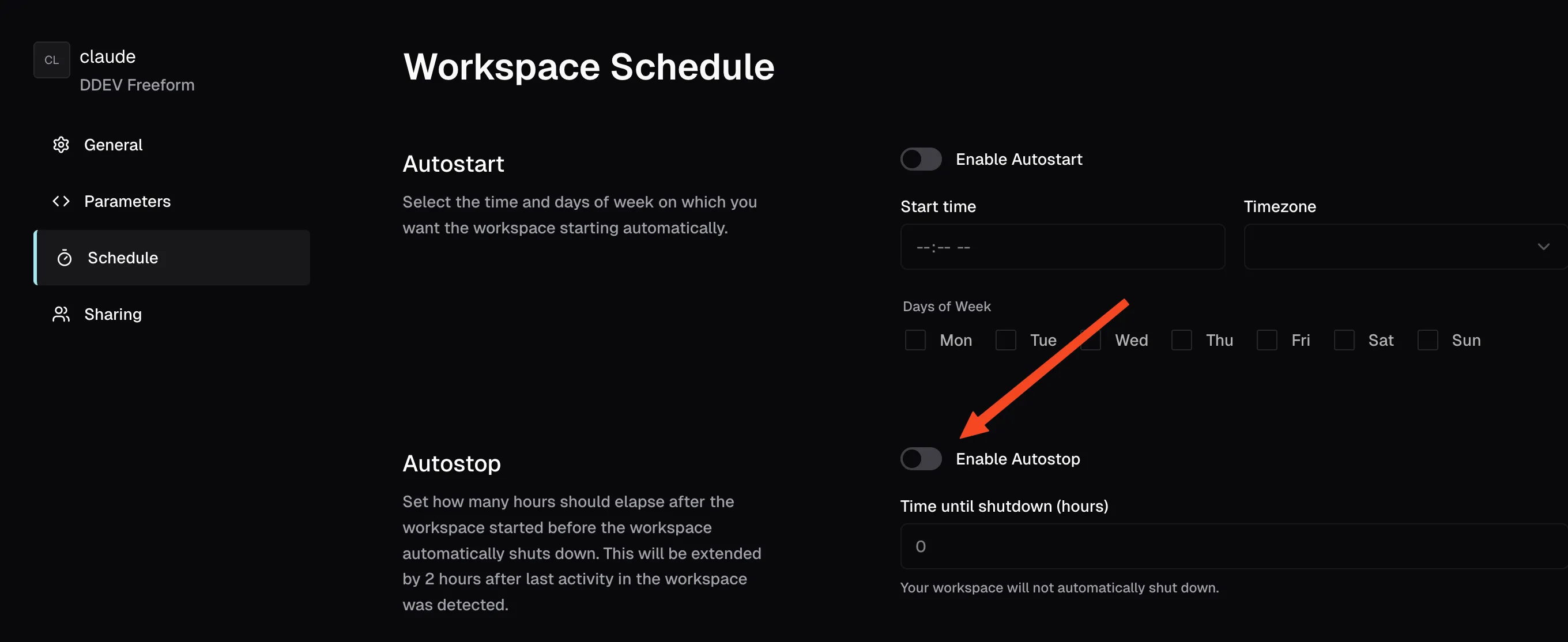
coder.ddev.com workspaces are configured by default to shut down automatically after a period of inactivity. That’s fine for regular use, but if Claude is going to be doing work in a tmux session while you’re away from the workspace — checking in later from your phone or from claude.ai/code — an autostop can pull the rug out from under it mid-task.
Before starting, go to your workspace’s Settings → Schedule and make sure Enable Autostop is turned off:
Disposable, not durable
coder.ddev.com is experimental with no guarantees of retention or uptime. Disabling autostop keeps the workspace alive for your session, but you should still push finished work to Git — don’t rely on the workspace itself as storage. And please turn off the workspace when not in use. Please don’t abuse this service.
Steps
-
Create a freeform workspace at coder.ddev.com.
-
Connect over SSH with
coder ssh <workspace-name>rather than the web terminal — it’s a more natural fit for the rest of this workflow. (But the web terminal would work fine too.) -
Clone the project you want to work on and
cdinto it. -
Log in to Claude Code (
claude) the first time, following the device-login flow in your browser. -
Start Claude inside a named
tmuxsession usingcc-remote-control.sh, a small wrapper script that keeps it running whether or not you’re connected:#!/usr/bin/env bash # Claude Code remote-control, with tmux usage # cc-remote-control.sh <session> [dir] set -euo pipefail NAME="${1:?Usage: cc-remote-control.sh NAME [DIR]}" DIR="${2:-$PWD}" tmux new-session -As "$NAME" -c "$DIR" \ "claude --remote-control --name '$NAME'"Run it with a session name that matches the task, for example
cc-remote-control.sh caminofix. -
Claude Code prints instructions for connecting from claude.ai/code or the Claude mobile app the moment the session starts.
-
Describe the problem to Claude. Because the workspace is sandboxed (coder.ddev.com runs each workspace in a Docker-in-Docker Sysbox container), it’s reasonable to switch to auto mode and let Claude keep going without approving every step.
-
Check in from your phone or from claude.ai/code whenever you like — the local session doesn’t care whether anything is watching.
-
When Claude has a working fix, ask it to coach you through the contribution process for the upstream project, even if you aren’t familiar with that project’s conventions.
A Few tmux Basics
cc-remote-control.sh is just a thin wrapper around tmux new-session -As, so it helps to know a handful of tmux commands if you haven’t used it before:
Ctrl-b d— detach from the current session, leaving it running in the background. You’ll probably want to do this right away.tmux new -s mysession— start a new named sessiontmux new -As mysession— attach tomysessionif it already exists, or create it (this is whatcc-remote-control.shdoes)tmux ls— list running sessionstmux attach -t mysession— reattach to a session you detached from earlier
Detaching is the key move: it lets you close your SSH connection (or lose it) without killing Claude’s session, then pick it back up later with tmux attach or by rerunning cc-remote-control.sh with the same name.
Following Along from Your Phone
The same caminofix session, mid-fix, viewed from the Claude app on a phone:
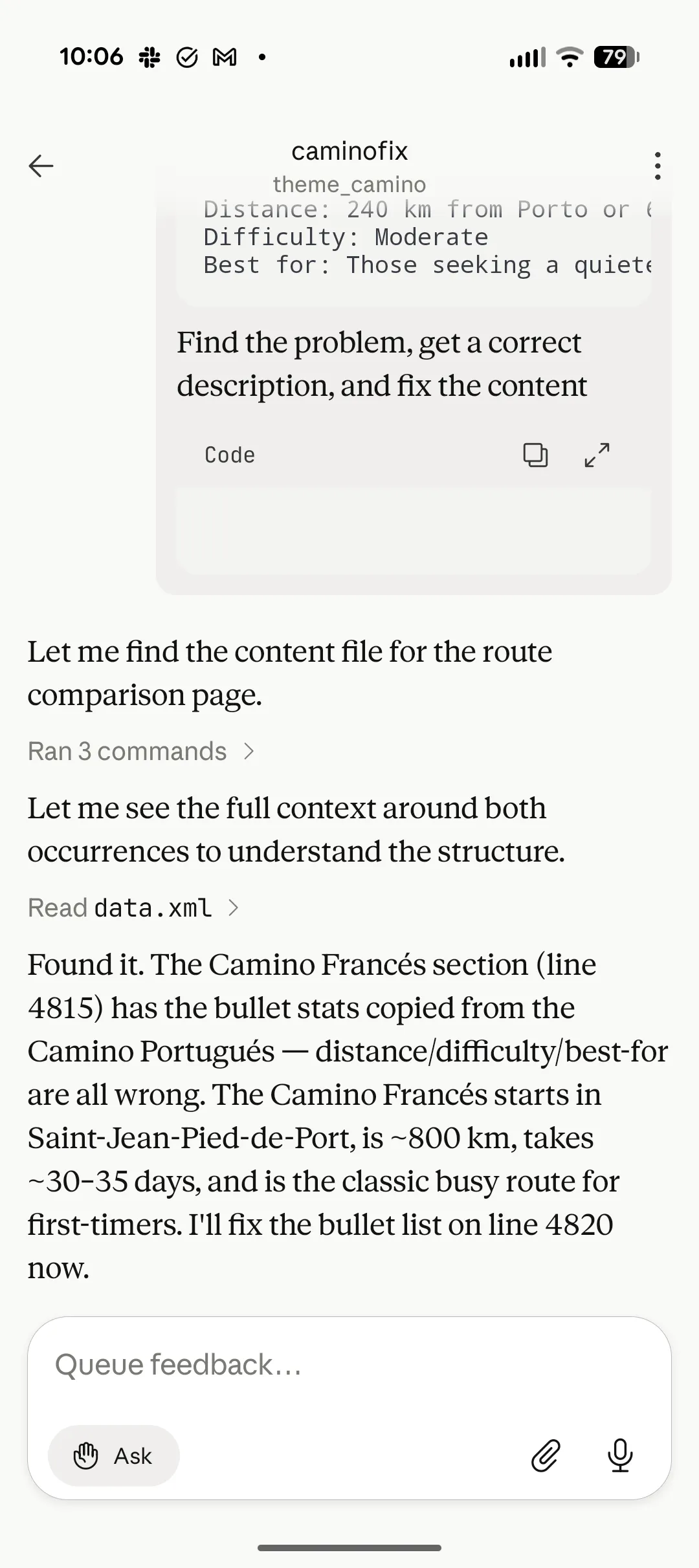
You can read along and even type feedback in the “Queue feedback” box while Claude keeps working — no need to be at the keyboard where the session started.
Learn More
- Claude Code Remote Control docs
- Introducing coder.ddev.com: DDEV in the Cloud
- github.com/ddev/coder-ddev — templates and source for the freeform, drupal-core, and drupal-contrib templates
If you have questions, reach out in any of the support channels.
Follow our blog, Bluesky, LinkedIn, Mastodon, and join us on Discord. Sign up for the monthly newsletter.
This article was edited and refined with assistance from Claude Code.